The Sims 4 (Anadius repack) on Linux Mint
Hi everyone!
Today I want to share my experience getting The Sims 4 to run on Linux Mint 22.
A little bit of context if you’re interested, if not you can skip it and go directly to the requirements section.
I recently migrated from Windows 11 to Linux Mint 22 in order to run away from Microsoft’s privacy-invasive practices. I managed to install all my favorite apps on Linux but the thing I was hesitant about was gaming, although I don’t game that much, I do enjoy playing The Sims 4 and Grand Theft Auto from time to time. The version of The Sims 4 I have is the Anadius repack version, I am aware that Anadius recently left, but I still have some of their repacks and they have worked fine in Windows, I have until version 1.113.291.1020 DX11. I think this version is from March of this year and covers up to the “Businesses & Hobbies” expansion pack. Haha I haven’t played The Sims 4 in a while but I wanted to play it again on Linux.
After some research, I found out that The Sims 4 can be run on Linux using Wine and Lutris.
Ok let’s see what we need to get started, you will need two things:
Requirements:
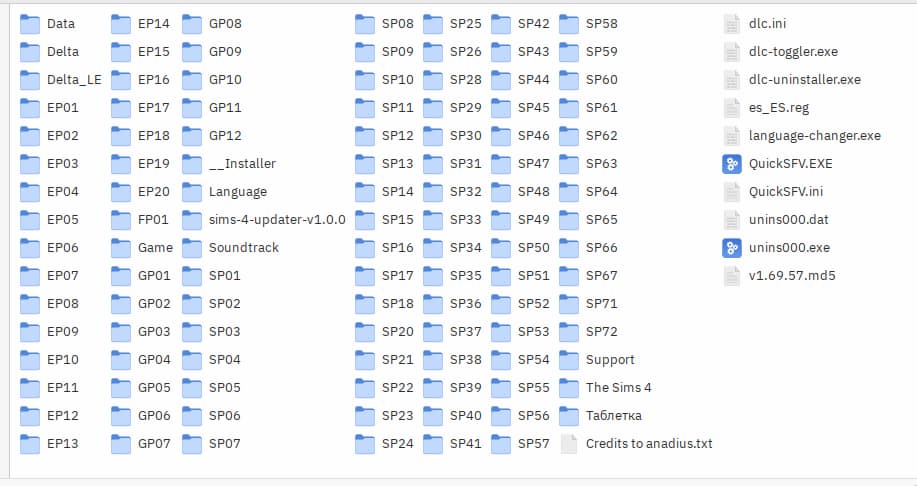
- Your folder where The Sims 4 is located (the anadius repack version). It should look something like this:
-
Install Wine and Lutris:
-
Since I am on Linux Mint, I followed the steps from this guide. So you need to check out a guide or tutorial on how to install Wine on your Linux distribution.
-
For Lutris, you can follow the instructions on their official website. I just installed the .deb package in my case.
-
Now that you have Wine and Lutris installed, we are ready to configure The Sims 4 in Lutris.
Steps to configure The Sims 4 on Lutris:
-
Open Lutris and click on the ”+” icon to add a new game.
-
Select “Add a locally installed game” from the option list.
-
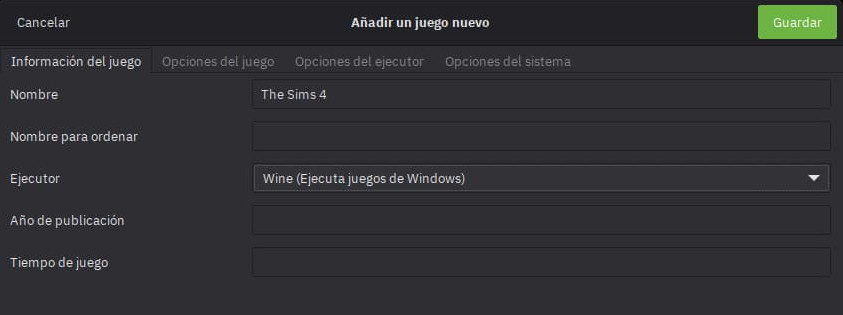
In the “Add a new game” window, fill in the following details in the “Game info” tab:
- Name: The Sims 4
- Runner: Wine
-
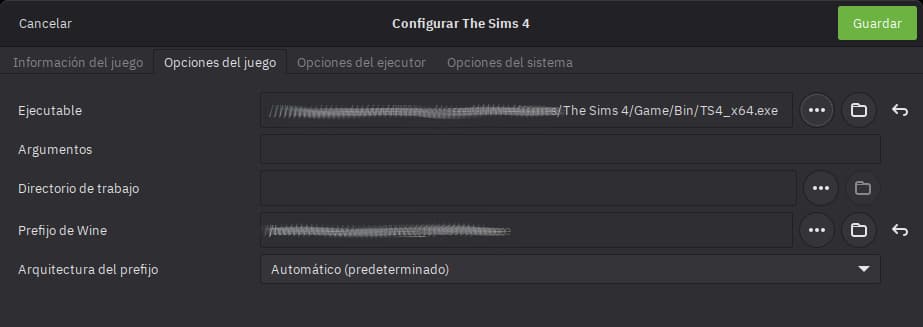
Now go to the “Game options” tab and fill in the following:
- Executable: Click on “Browse” and navigate to the folder where you have The Sims 4 located, then select the “TS4_64.exe” file inside the “Game” folder.
- Wine prefix: You can leave this as default but I recommend creating a new prefix. For example, you can set it to “/home/yourusername/Games/sims4”. We will need to create this folder beforehand. Remember this path as we will use it later.
-
Optional. Go to the “System options” tab:
- Select your Graphics card in the “GPU” dropdown menu if you have one.
-
Now click on the “Save” button to save your game configuration.
-
If you had The Sims 4 installed on Windows and have a backup of your saves, you can copy them to the new Wine prefix folder you created earlier. The save files are usually located in “Documents/Electronic Arts/” inside the Wine prefix folder like “/home/yourusername/Games/sims4”.
You can try to run The Sims 4 from Lutris by selecting it and clicking on the “Play” button.
But if your game is on a different language than english, you will need to do some extra steps to change the language to your desired one.
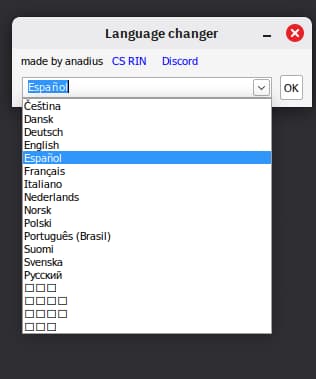
- To change the language, in Lutris select The Sims 4 and click on the wine glass menu option (next to the “Play” button) and select “Run exe inside Wine prefix” then navigate to the folder where you have The Sims 4 and select language-changer.exe, this will open a window where you can select your desired language, in my case I selected Spanish.
- Now you can run The Sims 4 by clicking on the “Play” button.
And that’s it! You should now be able to play The Sims 4 on Linux Mint 22 (and I hope in any other Linux distro) using Wine and Lutris.
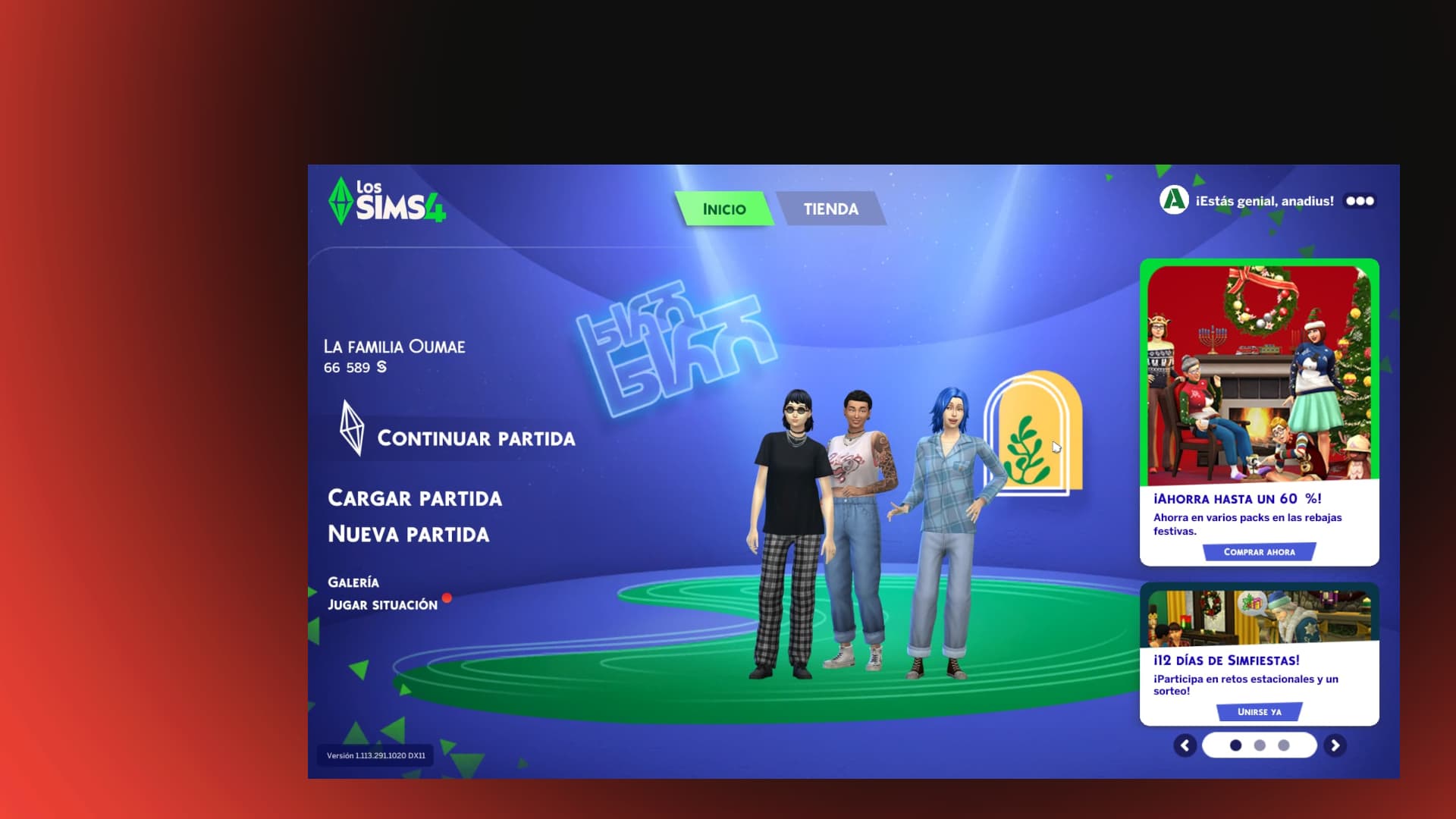
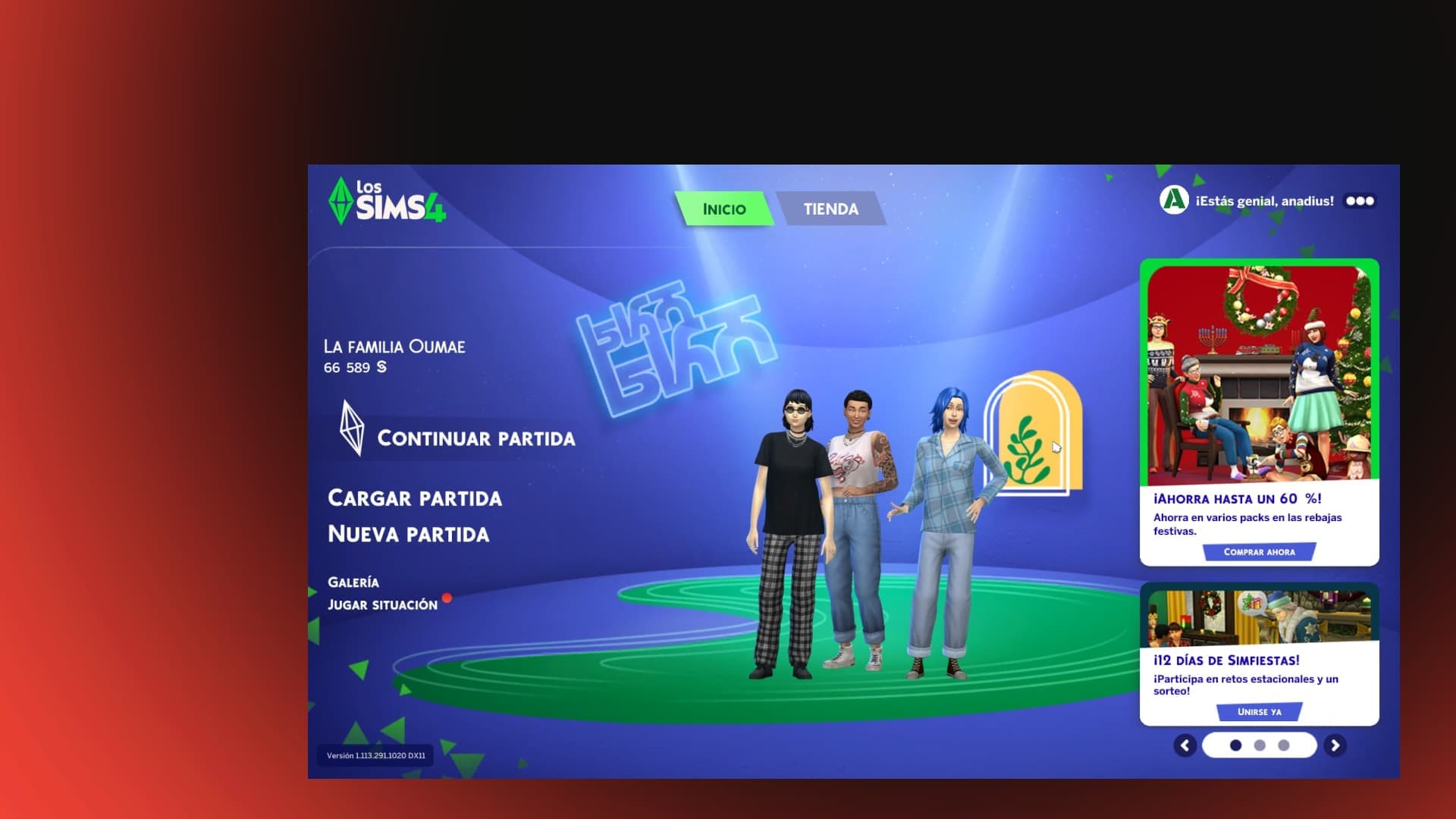
This is a screenshot of The Sims 4 running on my laptop with Linux Mint:

I wasn’t able to do this without the help of this tutorial on YouTube and this reddit post here regarding the language changer.
I am really grateful to them for sharing their knowledge! and now I am sharing it with you all.
← Back to blog